You fill in the form, press “Send”, and no enquiry appears in your inbox. Or the button opens another application and you cannot tell whether the message was sent. Before asking someone to rebuild the entire website, it helps to identify which part of the journey is failing.
For a service business, contact is an important part of the website. Visitors need to explain what they are looking for, and you need to receive enough information to respond. A page can look good while still failing at this step.
You do not need to know the code to describe the problem. It does help to separate what the visitor did, what the website reported, and what actually reached its destination.
First: does the button send a message or open an email?
On some websites, “Contact” opens a draft in the visitor’s email application. This is usually done with a `mailto` link. The visitor still has to write or review the message and send it from that application. MDN documents this behaviour.
It can be useful as another contact option. But if the page presents it as a submission from the website, there is a gap between what it promises and what it does. Opening a draft does not prove that anyone sent you a message.
A form that submits directly follows a different path: the visitor enters their details, the website processes them, and a system handles delivery. This process can also fail. The confirmation should therefore describe what has actually been checked.
If you do not know which contact method your site uses, watch what happens when you press the button. Do you stay on the page? Does your email application open? Is there an error? That detail is already useful for an initial review.
“Sent” and “received” are different checks
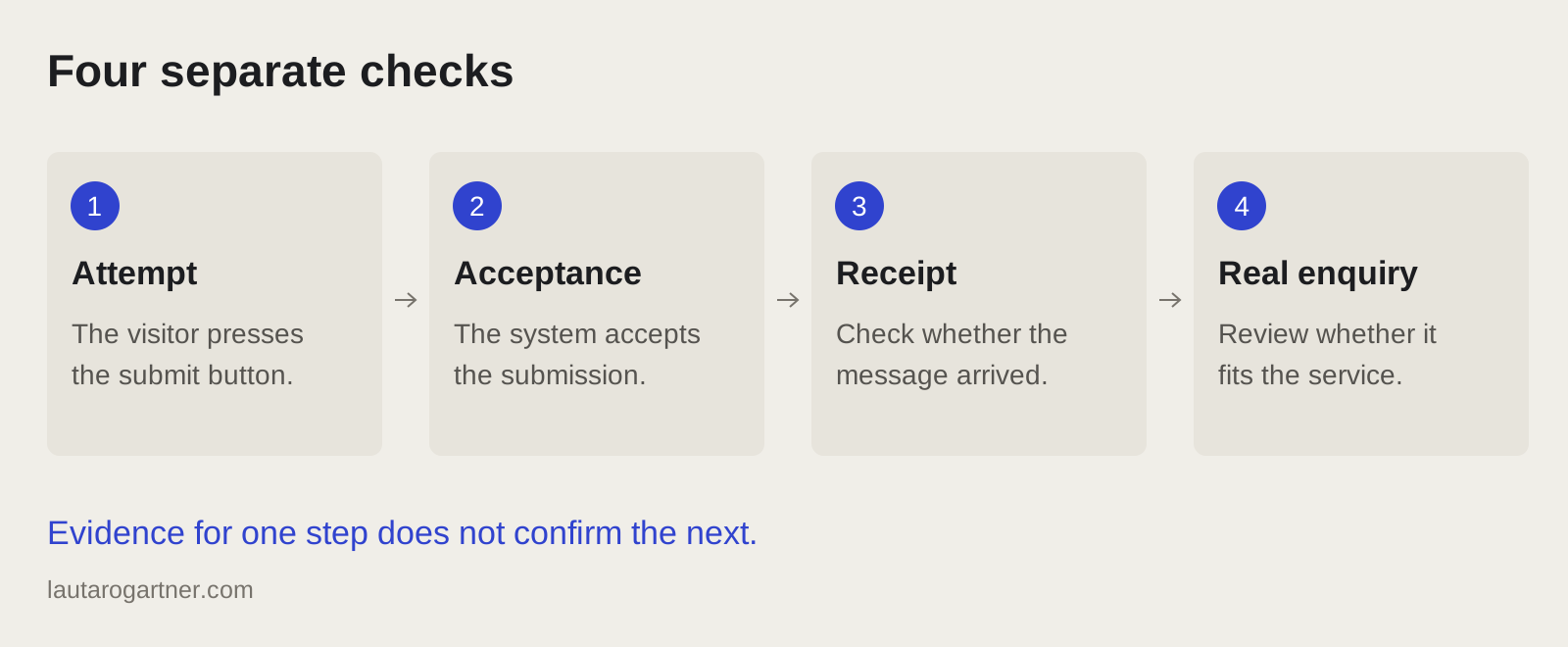
Separate these steps:
- The visitor tried to submit. They pressed the button. There could be an invalid field, a connection problem or a page error.
- The system accepted the submission. The mechanism responsible for processing it returned a response. This does not yet prove that the email is in your inbox.
- The message reached the expected destination. You found it in the business mailbox, with the information needed to respond.
- The enquiry had commercial value. It was a genuine request, it matched your service, and you could move the conversation forward. This requires reviewing the conversation; a form cannot prove it by itself.
This distinction prevents treating a green confirmation message as proof that the problem is resolved. It also prevents counting a test enquiry as a customer.
When the form responds correctly but the email does not arrive, the problem may be further along the path. Google’s guide to contact forms and Gmail covers messages going to spam or being rejected, and authentication of the sending system. Different websites need different solutions: first establish how yours sends messages.
What you can check without changing settings
If you are responsible for the site, arrange a test with the person who receives enquiries. Use a message clearly labelled as a test and record the time. Avoid using a real customer’s details.
Check the page on a phone as well as a computer. Consider these questions:
- Is it clear what information each field asks for?
- Can you tell required fields from optional ones?
- Can you complete the journey without the keyboard covering something you need?
- If there is an error, does it explain what to correct?
- Does the confirmation explain what happened and what comes next?
- Does the message appear in the agreed mailbox, including spam where relevant?
You do not need to submit the same form repeatedly because it is taking a while. A useful repair should also account for what happens while the submission is being processed and how errors are communicated.
The W3C forms tutorial recommends instructions, labelled controls, validation, and success or error notifications. These are useful contact-form review criteria, beyond visual details.
If a warning or technical error appears, save a screenshot. Do not change domain records or install a random tool to try your luck. Keep a record of the symptom and review the system the website already uses.
The change to my own form
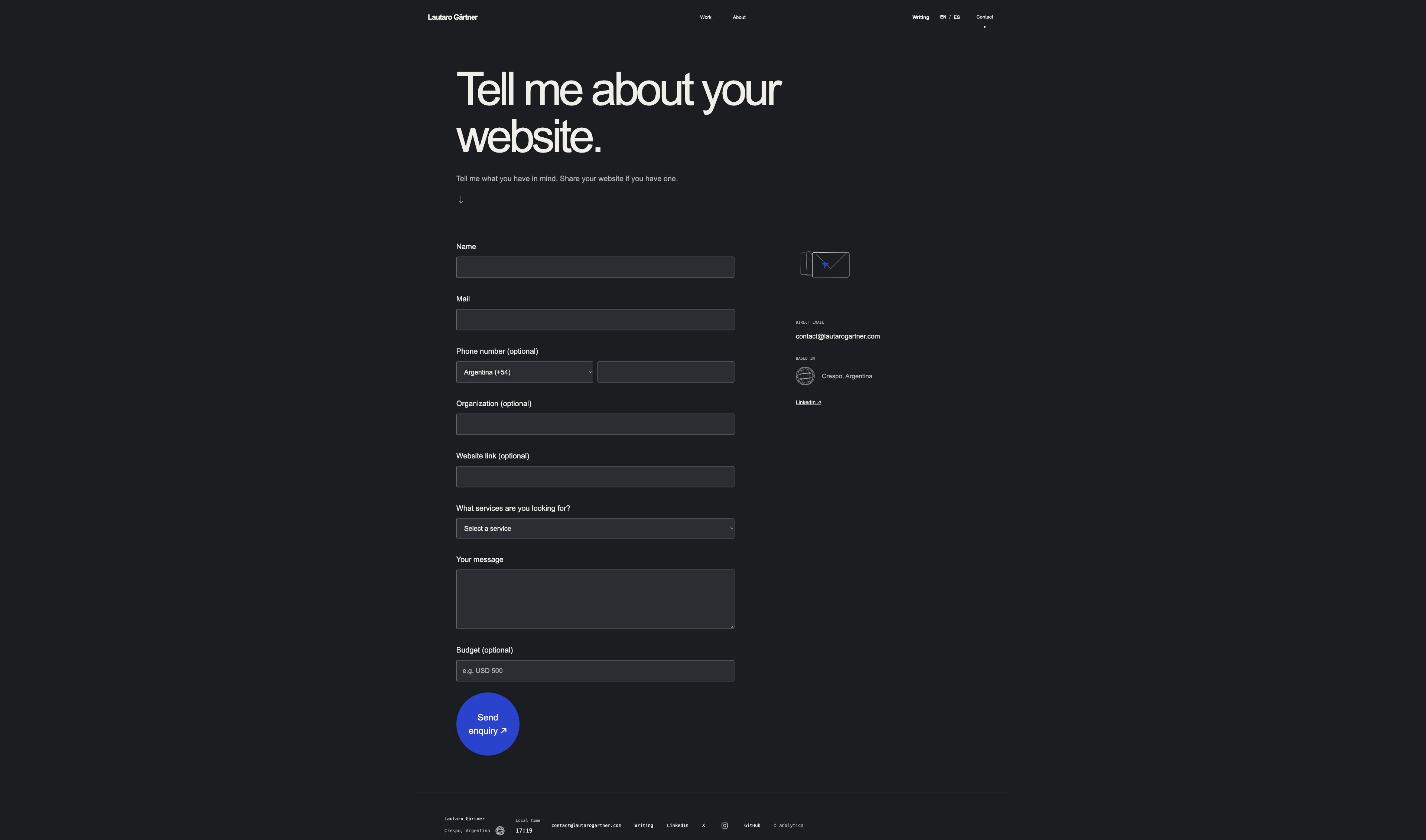
On my site, the contact flow changed from opening an email with `mailto` to allowing direct submission from the website. Delivery was verified with a test enquiry.
This example shows a concrete difference: there used to be an extra step in another application; now the enquiry can be processed from the page. It also sets a limit on what I can claim. Verifying delivery does not demonstrate that the change generated more commercial enquiries or sales.
To establish that, I need to observe genuine requests and have enough data. Tests show that the journey works under the conditions checked. The business outcome is a separate question.
What to send when requesting a repair
“The contact form does not work” leaves many possibilities open. Make the request clearer with this short brief:
Page: [exact URL]
Expected behaviour: [for example, send an enquiry to the business mailbox]
Current behaviour: [opens an email / keeps loading / shows an error / confirms but nothing arrives]
Where I tested it: [phone or computer, and browser if known]
When it happened: [date and approximate time]
Who receives enquiries: [role or work mailbox to be reviewed privately]
Include the site’s platform if you know it. If you do not, the URL provides a starting point. Do not share passwords or sensitive access details in the first message.
This information helps establish whether the problem is in using the form, processing the submission or delivering the message, and which access is needed to work on it.
What the repair quote should include
Ask for a scope that names the specific problem, the affected page and how the solution will be verified. “Improve the website” is too broad if what you need is to receive enquiries.
A clear delivery can include the agreed correction, checks on a phone and computer, a coordinated receipt test and an explanation of what changed. If an external service or recurring cost is involved, establish that before starting.
Agree on the boundaries too. Fixing contact does not automatically include redesigning the site, attracting visitors or maintaining it continuously. See the scope of my website repairs and contact forms.
When to consider the problem resolved
The closing check depends on the fault you agreed to fix. If a request was not arriving, a change in the button’s text is not enough: check receipt at the intended destination. If the issue was difficulty using the form on a phone, complete the journey in that context.
Keep a short explanation of the test and its result. If another error appears later, you will have a reference for comparison.
The commercial work comes after that: which enquiries arrive, whether they match the service, and whether you can respond. A website that delivers messages resolves a necessary condition of contact. The quantity and quality of opportunities need to be assessed using your own evidence.
Having a similar problem? Send me the page and describe what happens. With the URL, the symptom and the expected behaviour, I can review whether it fits a focused repair and what we would need to define the work.